To master how to print on label paper, you simply need to align the material face-up or face-down depending on your tray mechanics and adjust your software settings to the “Label” or “Heavyweight” media profile. It is honestly quite straightforward once you grasp the physics of your specific printer. I feel a genuine rush of satisfaction when a sheet feeds through perfectly without any hideous jams or adhesive oozing!
You must verify if your device uses inkjet or laser technology, as using the wrong coating is a recipe for disaster. Most people mess up by ignoring the manual feed tray, which is a total tragedy for the material’s integrity. Just ensure the path is clear and your design fits the die-cuts. It’s truly a breeze.
Can you print on label paper with a regular printer?
You absolutely can utilize a standard desktop printer for this task, though the nuanced science behind the bond between toner and face stock is quite fascinating. I often feel a surge of nervous energy when feeding a new synthetic sheet through a laser jet, hoping the fuser heat doesn’t cause any adhesive migration! Most consumer-grade hardware handles matte or glossy paper labels with ease. However, you must be vigilant about the specific ink chemistry, as inkjet machines require a porous or specially coated surface to prevent the dreaded smearing.
It’s a common misconception that you need industrial equipment for professional results. As long as you select the “Label” or “Heavy Paper” setting in your print dialog to slow down the rollers, the output usually looks stellar. I am always impressed by how modern home units manage the varying calipers of these multi-layered materials. Just keep an eye on the feed path to avoid any pesky jams.
How do I get my printer to print on sticker paper?
To coax your machine into cooperating with adhesive-backed media, you must first navigate the labyrinth of your print preferences. It truly baffles me how many brilliant people skip the “Media Type” selection! By choosing the “Labels” or “Cardstock” setting, you tell the printer to adjust its fuser temperature and slow the drive rollers. This prevents the sticker paper from curling like a dried leaf or, heaven forbid, peeling off inside the guts of the hardware.
I always feel a bit anxious when the engine starts humming, but using the manual feed tray–rather than the main cassette–drastically reduces the risk of a catastrophic paper jam. You want the straightest path possible to preserve the liner’s structural integrity. Ensure your design software aligns with the specific die-cut template, or you’ll end up with wonky margins that look utterly amateur. It’s all about that tactile precision and software harmony. Honestly, getting that first crisp sheet is a total rush!
Can you put label paper in a printer?
Integrating label paper into your standard printer is not merely possible; it is a fundamental practice in the labell materials world. I always feel a profound sense of wonder regarding how these multi-layered laminates navigate such tight internal tolerances!
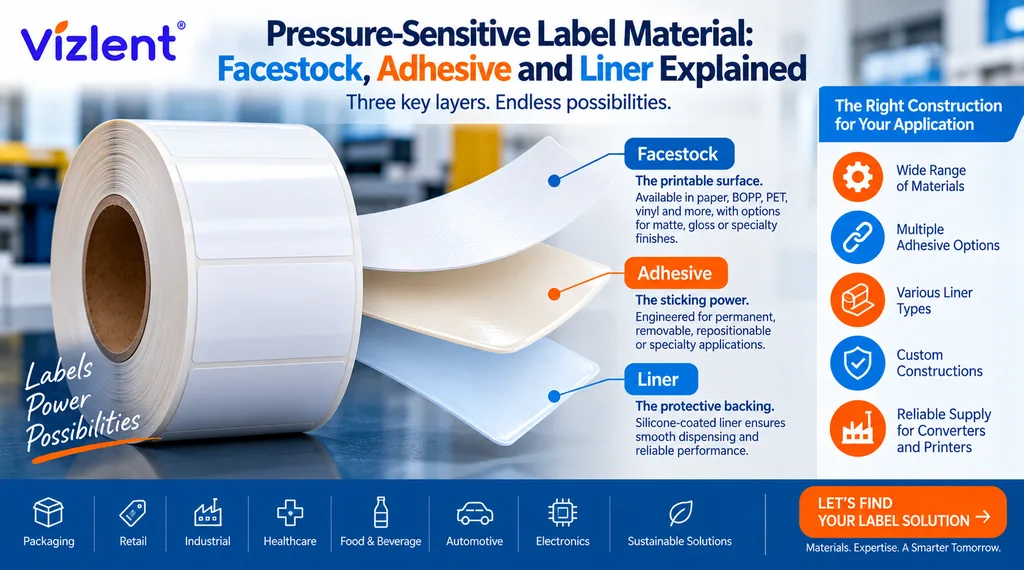
Technically speaking, you are feeding a sandwich of face stock, adhesive, and a silicone-coated release liner through a series of high-speed rollers. It’s imperative that you distinguish between inkjet and laser variants, as the surface energy of the material must match the ink’s viscosity or the toner’s melting point. I get slightly annoyed when people shove a random sheet in without checking the grain direction.
You should ideally utilize the bypass tray to ensure a linear path, reducing the mechanical stress on the adhesive bond. If you ignore these nuances, you risk a sticky mess that could compromise your fuser. But with the right settings, it is a seamless and deeply satisfying process! Just verify the weight specs beforehand.
Can I just print a shipping label on paper?
You certainly can print a shipping label on standard office paper, and honestly, it is a perfectly viable work-around when those specialized adhesive sheets are nowhere to be found. I often feel a strange sense of relief when a simple sheet of 20lb bond performs just as well as a pricey laminate!
From a research perspective, the primary concern is the barcode’s scanability against the paper’s brightness. Standard paper lacks the built-in barrier coatings of professional label stock, so you must be vigilent about ink saturation levels. If your ink bleeds into the fibers, the edges of the bars become fuzzy, which is a total nightmare for high-speed postal scanners. I recommend using a high-quality setting to ensure the black pigment sits on the surface rather than soaking in.
Just remember that without a sticky back, you’ll need a reliable attachment method to keep that paper secure during its chaotic journey through the mail system. It’s surprisingly robust if handled with a bit of care.
How to Print onto sticky labels from Word
Configuring Microsoft Word to communicate with your printer for sticky media is a technical dance that requires meticulous precision. I often feel a slight pang of anxiety when I see people trying to eyeball the margins manually… what a total waste of expensive facestock! Instead, you must navigate to the ‘Mailings’ tab and select the ‘Labels’ icon to access the internal database of templates. By picking the exact brand and product code, you ensure the software’s logical grid aligns perfectly with the physical die-cuts of the sheet.
I am always fascinated by how a few millimeters of offset can utterly ruin a batch of high-gloss materials! Ensure you adjust the ‘Properties’ in the print dialog to a ‘Label’ or ‘Heavy’ setting to prevent the adhesive from getting too gooey under the heat. It’s truly satisfying when the alignment is spot on and the ink stays crisp. Just don’t forget to check the ‘Scale to Fit’ box–that little devil causes more headaches than anything else in the industry. It really is a game of millimeters!